Enable location access
Use My Location needs permission from both your browser and your device. If you chose Don’t Allow, you can change that in settings. Choose your device below, then return to the map and try again.
iPhone or iPad · Safari
- In your EMF Map tab, tap the Page Menu on the left side of the address bar (shown as aA on older versions).

Tap the icon outlined in red. - Open Website Settings, then set Location to Ask or Allow. Some versions place these settings under the menu’s More button.
- If access is still blocked, open your device’s Settings → Privacy & Security → Location Services. Turn Location Services on, then select Safari Websites and allow access while using the app.
- Return to the map and tap Use My Location again. Allow access if Safari asks.
Using Chrome on iPhone? Check Chrome’s permission under Location Services, then try again in Chrome. For a closer map position, enable Precise Location if offered.
What the permission choices mean: Allow Once gives temporary access; While Using the App allows access while you use the browser; Don’t Allow blocks it. Available choices vary. You may be asked again later, even after a successful visit.
Official instructions: Apple: Location Services and app permissions
Android · Chrome
- In your EMF Map tab, tap the site controls icon beside the address bar, then Permissions → Location. Allow location access for this site.

Tap the icon outlined in red. Its appearance may vary by device. - If Location is missing, open Chrome’s ⋮ menu → Settings → Site settings → Location. Allow location requests and check whether www.emfmap.org is blocked.
- Check your phone’s Settings → Location and turn location on. Under Apps → Chrome → Permissions → Location, allow access while using the app. Setting names vary by phone.
- Return to the map and tap Use My Location again. Allow access if Chrome asks.
Choose Precise location if offered for a closer map position. Other Android browsers also need both site permission and permission in your phone’s settings.
Official instructions: Google: Android device location settings · Google: Allow location in Chrome
On a computer
Open your browser’s site settings for www.emfmap.org and allow location access. Also check that your computer’s location services permit your browser to use them.
Next, click Site settings, then set Location to Allow.
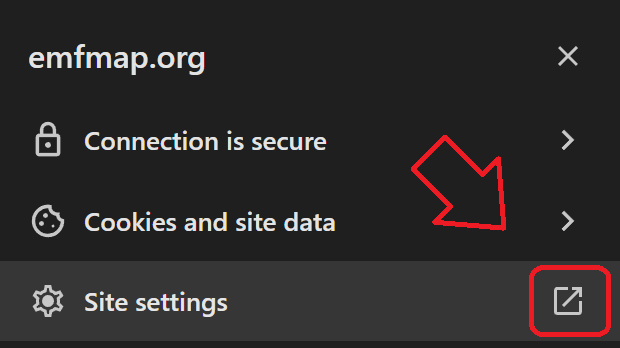
Return to the map and click Use My Location again. If access is still blocked, reload the map and retry.
Official instructions: Google: Chrome location settings on a computer
Permission is allowed, but it still fails?
A timeout or unavailable position doesn’t always mean permission was denied. Check that device location is on, keep your internet connection active, and try Use My Location again. Make sure you opened the map over HTTPS in a browser that supports location access.
These instructions opened in a separate tab so your map stays in place. Return to your original map tab when you’re ready.